
How to use
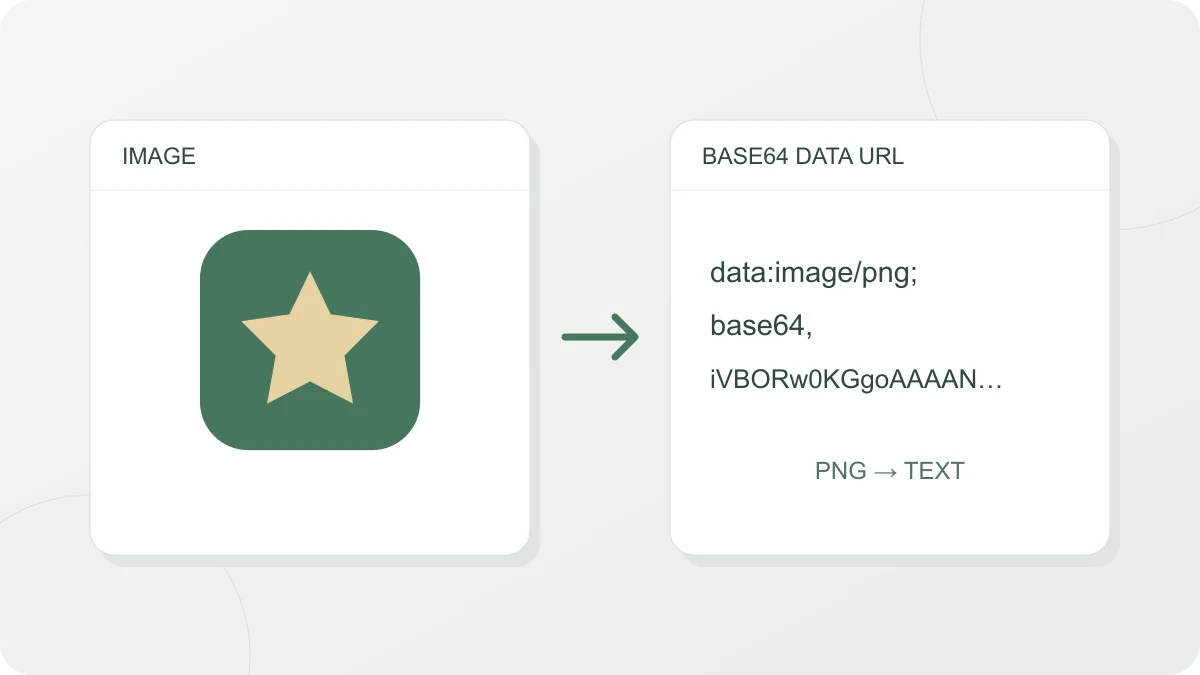
On the “Image → Base64” tab, drag in an image, click to pick one, or paste a copied image with Ctrl+V (⌘+V on a Mac). PNG, JPEG, GIF, WebP, SVG, AVIF, ICO and BMP are supported, up to 10MB. Next to the preview you’ll see the format, the width × height in pixels, the original size and the Base64 size with the increase beneath it, followed by five output formats, one per line:
- Data URL:
data:image/png;base64,…— the value you put straight intosrcorurl() - Plain Base64: just the data, without the
data:…;base64,prefix (for APIs or JSON) - HTML:
<img src="…" alt=""> - CSS:
background-image: url("…"); - Markdown:

Long strings are shortened in the middle on screen, but the copy button always copies the full string. The HTML alt is left empty, so fill it in with text that describes the image.
To detect the format, the tool looks at the signature at the start of the file (magic bytes) first, ahead of the file name. A file named .jpg that is actually a PNG is correctly labeled image/png.
SVG previews use an img element, so scripts inside the SVG are not executed.
The data URL format
A data URL follows the format defined in RFC 2397: data:[<media type>][;base64],<data>. The media type (such as image/png) tells the browser what kind of data it is, and ;base64 marks the data as Base64-encoded. Without ;base64, the data is read as URL-encoded (percent-encoded) text. Binary data such as images is usually Base64-encoded, while text-based data such as SVG can also be embedded URL-encoded.
Each Base64 character carries only 6 bits, so Base64 represents every 3 bytes with 4 characters out of a set of 64 (RFC 4648), and the result is about 33% larger than the original. Add a 10KB (10,240-byte) PNG, for example, and you get 13,656 characters, about 13.3KB, with +33.4% shown as the “Increase”. The “Base64 size” excludes the 22-character data:image/png;base64, prefix, which is why the character count next to the “Data URL” line is slightly higher at 13,678. For very small files, the trailing = padding can push the increase a little higher.
When inlining helps and when it hurts
Embedding an image in HTML or CSS as a data URL means the browser doesn’t have to request a separate image file. That suits small icons and logos of a few KB, and HTML documents or code samples that need to be self-contained in a single file.
For large photos it works against you:
- The size grows by about 33%. The percentage is much the same for every file, but the amount actually added is not. A 2KB (2,048-byte) icon becomes 2,732 characters, only 684 bytes more, while a 2MB (2,097,152-byte) photo becomes 2,796,204 characters, about 683KB more. After adding your image, compare “Original size” with “Base64 size” and decide whether your HTML or CSS file can afford to grow by that much.
- The image lives inside the HTML or CSS file, so it isn’t cached separately. If several pages use the same image, it’s downloaded again with each page.
- A larger CSS file can delay rendering until the whole stylesheet has arrived.
SVG is shorter URL-encoded
SVG is a text-based image, so it doesn’t need Base64 at all. Base64 adds about 33%, while URL encoding only replaces a few problematic characters, so it’s usually shorter. When you add an SVG file, you can pick “URL-encoded” under “SVG encoding”, and the sizes of both options are shown side by side. The tool collapses line breaks and repeated spaces into a single space, replaces double quotes with single quotes (or, if the file already contains single quotes, encodes the double quotes as %22), and encodes only characters such as <, >, # and %. The result can go straight into an HTML attribute or a CSS url("…"). With “URL-encoded” selected, the “Plain Base64” line disappears and the Markdown line comes out as  because of the spaces left in the result. An SVG that isn’t UTF-8 can only use Base64.
Turning Base64 back into an image
Paste a data URL or a plain Base64 string into the “Base64 → Image” tab to get a preview and a download button. Spaces and line breaks are ignored, and strings with URL-safe characters (-, _) or missing = padding are accepted too. The format is detected automatically from the magic bytes. For example, PNG starts with 89 50 4E 47, JPEG with FF D8 FF, and GIF with GIF87a or GIF89a. If the format written in the data URL doesn’t match the actual data, the image is shown as its real format and you’re told about the mismatch. If the format can’t be detected, choose it yourself under “Image format”.