
How to use it
Pick a direction in the tabs at the top (JSON → YAML or YAML → JSON) and paste your data into the input box — the result appears right away. For JSON → YAML you can set the indent (2 or 4 spaces) and sort keys; for YAML → JSON you can set the indent (2 spaces, 4 spaces or a tab) and choose whether to wrap multiple documents in an array. Copy the result or download it as a .yaml or .json file. “Open file” loads a .json, .yaml or .yml file and picks the direction from its extension. Switching direction moves the result you just got into the input box, so you can convert it back. If the input isn’t valid, you’ll see the line and column of the problem and the code around it instead of a result.
The yaml library is downloaded on the first conversion.
How JSON and YAML relate
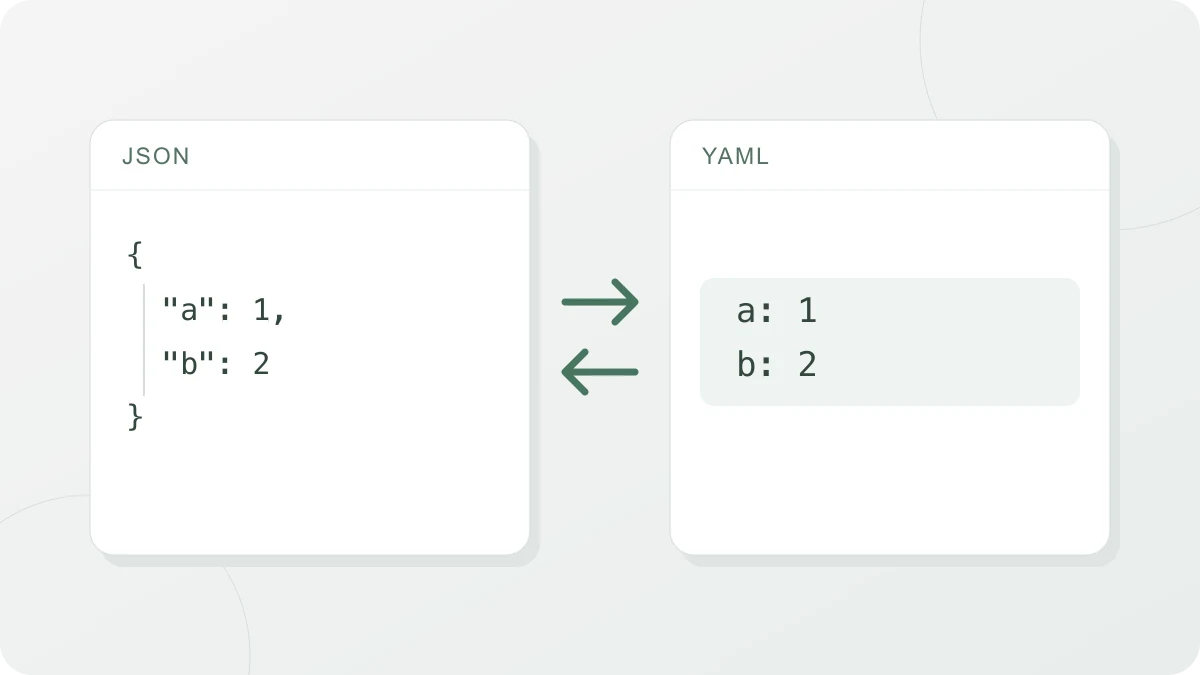
Both formats describe data with objects (mappings), arrays (sequences), strings, numbers, booleans and null. JSON marks structure with braces, brackets and double quotes; YAML mostly uses indentation, - and :, which makes it easier for people to read and edit. YAML 1.2, published in 2009, focused on making YAML a strict superset of JSON. That’s why valid JSON almost always reads as YAML too, and pasting JSON into YAML → JSON mode works. The reverse isn’t true: features JSON doesn’t have — comments, anchors, multiple documents — are dropped or expanded on the way to JSON.
What changes in conversion
- Comments: JSON’s grammar (RFC 8259) has no place for comments, so they are all dropped when converting YAML to JSON. The YAML spec itself says comments are a presentation detail with no effect on the data. If you need to keep a note, write it as a key with a string value before converting, for example
_comment: "staging port"; it ends up in the result as"_comment": "staging port". Not every#is a comment: a#with no space before it, as inhttp://a.com/#frag, and a#inside quotes stay part of the value. Input that contains nothing but comments gives the error “There is no YAML document to convert. Check whether the input only has comments.” - Anchors and aliases (
&name,*name): the referenced value is copied in place. To block the “billion laughs” attack, where aliases multiply exponentially, conversion stops when aliases expand too many times (the yaml library’s default limit,maxAliasCount100). A legitimate file that is no attack stops with the same error once a single anchor is referenced by 100 aliases (99 still convert; the size of the value doesn’t matter, and a<<merge counts as one). When a value that contains aliases is itself aliased, the counts multiply and conversion stops sooner. If that happens, replace some of the aliases to that anchor with the actual values. - Merge keys (
<<): not part of the YAML 1.2 schemas, but widely used in config files such as docker compose, so they’re expanded following the YAML 1.1 merge rules. - Multiple documents (
---): in YAML → JSON, with “Wrap multiple documents (—) in an array” on (the default), each document becomes one element of a JSON array, and the result area shows the count, such as “3 documents”. Turn it off to convert only the first document; a warning tells you how many were left out. A lone document is never put in an array, whatever the setting. If the file ends with a bare---and nothing after it, that counts as an empty document and adds anullat the end of the array — delete that line if you don’t want it. JSON → YAML always writes one document: a top-level array is not split up into---documents. - Key order: both specs treat object keys as unordered, but this tool keeps the input order (number-like keys such as
"2"aren’t moved to the front). Turn on “Sort keys” in JSON → YAML to sort every object’s keys by Unicode code unit. - Tags: tags this tool doesn’t know, such as
!Ref, are removed and only the value is kept, with a warning. A tagged value such as!Ref 3or!Ref truethen comes out as a string, while tagged arrays and objects keep their structure and the values inside. - Values JSON lacks:
.infand.nandon’t exist in JSON, so they becomenullwith a warning. YAML keys that are arrays or objects are written as JSON text. - Duplicate keys: the same key twice in one YAML mapping breaks the spec, so it’s reported as an error. The same key twice in a JSON object keeps only the last value, just like the browser’s
JSON.parse, and shows a warning.
The Norway problem: yes, no, on, off
YAML 1.1 read y, yes, on, n, no and off (in several capitalizations) as booleans. So if you listed Norway’s country code NO without quotes, it became false — hence the name “Norway problem.” The YAML 1.2 core schema narrowed booleans down to true and false (and their capitalized forms, such as True and TRUE). This tool reads YAML that way, so NO, yes and off stay strings. There is no setting for reading YAML the 1.1 way, so rewrite every value you need as a boolean as true or false in the YAML itself. A mixed-case spelling such as tRue is a string, and so is a quoted value such as "true".
Some tools still follow YAML 1.1 rules, though. So in JSON → YAML output, strings that a 1.1 parser could read as something else get double quotes: boolean-like values (yes, no, on, off, y, n and so on), date-like values (2026-09-28), base-60 values (1:20), numbers with underscores (1_000) and the merge key <<. A quoted value is a string in both 1.1 and 1.2.
Big integers and number precision
JavaScript numbers are IEEE 754 doubles, so integers above 2^53 - 1 (9007199254740991, 16 digits) can have their last digits changed. This tool handles integers as BigInt in both directions, so large integers like 64-bit IDs come through digit for digit. In JSON → YAML, a trailing zero such as the one in 1.0 is kept as typed. In YAML → JSON, 1.0 turns into 1.
In YAML → JSON, an unquoted 01234 is read as an integer and becomes 1234; in the same way 1.10 becomes 1.1, 0x1F becomes 31 and 0o14 becomes 12. A postal code, a version number or any other code that has to survive exactly as typed needs quotes in the YAML, as in "01234" — JSON then receives it as a string. JSON → YAML writes number-like strings such as "01234" or "12345678901234567890" with quotes, so reading that YAML again still yields strings.
Decimals are handled as double-precision numbers in both directions, so a decimal with many significant digits such as 0.1234567890123456789 is rounded to the nearest double either way. Numbers in exponent notation change shape: in JSON → YAML 1e3 comes out as 1e+3, and in YAML → JSON 1e3 comes out as 1000. A value beyond the double range such as 1e400 becomes .inf in JSON → YAML. If the program that reads your JSON parses big integers as regular numbers, it can still lose precision there — when the exact value matters, it’s safer to keep it as a string at the source.
When you’d use it
- Kubernetes manifests: YAML by convention, but JSON works too, and kubectl turns the manifest into JSON or another format when it calls the API. Handy for turning an API response (JSON) into a manifest (YAML), or the other way round.
- GitHub Actions workflows:
.ymlor.yamlfiles in the.github/workflowsfolder, written in YAML. Useful when moving JSON config generated by a script into a workflow. - docker compose: the default file name is
compose.yaml, and anchors, aliases and merge keys (<<) let you reuse service settings. Converting YAML to JSON shows the final values with every merge expanded.